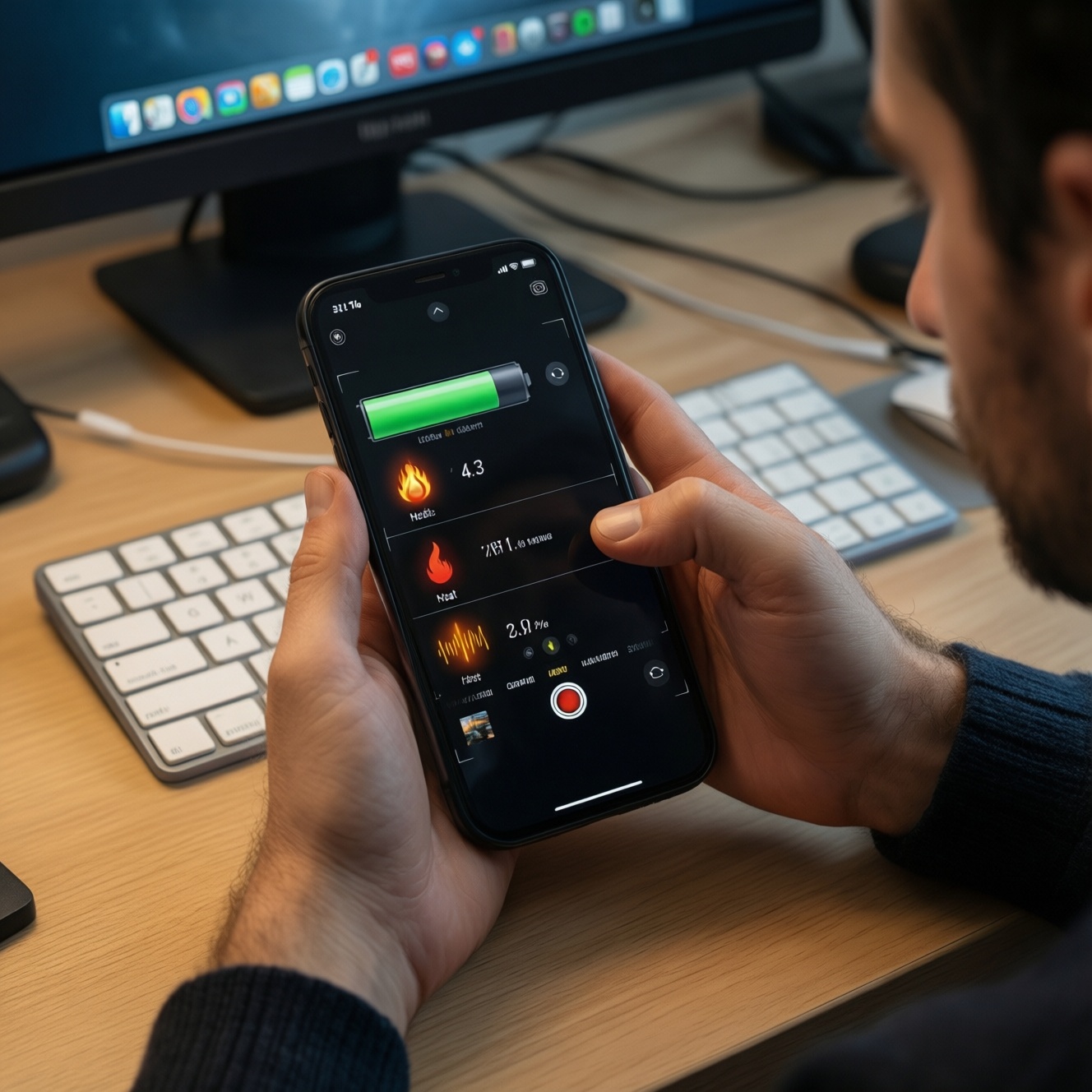
To keep 5G, Wi‑Fi, and Bluetooth stable in dead zones and while commuting, reduce unnecessary radio switching, place the device where signal is strongest, prefer controlled Wi‑Fi/hotspot setups, and remove Bluetooth interference. Use repeatable checks (signal bars are not enough), then apply small, reversible settings changes before buying hardware.
Quick operational checklist for maintaining connectivity
- Confirm whether the dropouts are cellular, Wi‑Fi, or Bluetooth (test one at a time).
- Lock down the environment: stop background tethering/VPN switching during travel unless needed.
- Move the device to a better RF position (window side, higher, away from metal/tinted glass).
- Prefer 5 GHz/6 GHz Wi‑Fi when close; prefer 2.4 GHz when far or through walls.
- Force stable behavior: avoid rapid airplane-mode toggles; use planned reconnection steps.
- For Bluetooth audio, keep phone and earbuds on the same side of your body; reduce nearby 2.4 GHz noise.
Signal behavior in dead zones and while commuting
Best for: commuters on BTS/MRT, drivers using navigation, travelers in condos/hotels with inconsistent coverage, and anyone whose phone flips between 5G/LTE/Wi‑Fi repeatedly.
Not worth doing (or do cautiously): if you need uninterrupted connectivity for safety-critical operations, don't rely on experimental network lock apps or unlicensed boosters. Also avoid installing unknown "signal booster" APKs or changing hidden modem settings you can't revert.
- Dead zones: basements, elevators, stairwells, inner rooms, and buildings with metalized/tinted glass.
- Commuting dropouts: cell handovers + tunnel sections + device switching between 5G NSA/SA and LTE.
Optimizing 5G performance when moving between cells
What you'll need:
- Access to your phone's network settings (SIM/eSIM, preferred network type, roaming toggle).
- A basic speed/latency test app or website; optionally a ping tool.
- Optional: Field test screens (iOS) or built-in signal info (Android settings) to compare locations.
- If you use a hotspot: the hotspot device or phone hotspot controls (band selection, APN, data saver).
Safe measurements that matter: stability (reconnect time, packet loss symptoms) and latency consistency, not peak Mbps.
- iOS: use Field Test Mode via the dialer (search "iPhone Field Test Mode") to compare signal quality in different spots; don't change carrier settings you don't understand.
- Android: use Settings > About phone > SIM status / Network & internet diagnostics (varies by brand).
Wi‑Fi tactics for low‑coverage locations and hotspots

-
Separate the problem: Wi‑Fi vs internet uplink
First, confirm if Wi‑Fi is connected but "no internet", or if Wi‑Fi itself keeps dropping. Test by loading a lightweight site and then running a quick ping to your router IP (often 192.168.1.1 or 192.168.0.1).
- If router ping is stable but websites fail, the uplink (ISP/5G backhaul) is the bottleneck.
- If router ping drops, it's Wi‑Fi coverage/interference or router overload.
-
Pick the right band for the distance
Use 5 GHz/6 GHz when you're near the access point for speed and cleaner channels; switch to 2.4 GHz when you're far away or behind multiple walls for better reach.
- In condos/hotels, 2.4 GHz can be crowded; if 5 GHz reaches, prefer it.
- For video calls, stability beats maximum throughput.
-
Fix placement before buying gear
Place the router/hotspot higher, in the open, and away from metal objects, TVs, and microwaves. In cars, avoid putting the phone/hotspot under the dashboard or next to thick power wiring.
-
Make roaming devices behave predictably
On your phone/laptop, "Forget" poor networks you keep auto-joining. Turn off Wi‑Fi auto-join for weak hotspots so you don't bounce between a weak Wi‑Fi and stable 5G.
- If you must use a public hotspot, use HTTPS-only apps and consider a reputable VPN (but test it-some VPNs increase latency).
-
Stabilize tethering (phone hotspot or portable router)
If you rely on mobile internet indoors, a portable 5G hotspot can be more consistent than a phone under heavy load. When comparing เราเตอร์ Wi‑Fi แบบพกพา 5G ราคา, prioritize stability features (band controls, external antenna ports, thermal management) over peak speed claims.
- Keep the hotspot plugged into stable power; low battery can trigger power-saving radio behavior.
- Reduce the number of connected devices during travel.
-
Use repeaters correctly (only when the source signal is good)
A repeater can extend coverage only if it receives a strong, clean Wi‑Fi signal from the main router. Before looking up เครื่องทวนสัญญาณ Wi‑Fi (Repeater) ราคา, verify there's a location midway where Wi‑Fi is already stable.
- Place the repeater where the main Wi‑Fi is still strong, not inside the dead zone.
- Prefer mesh systems over single repeaters if you can, for smoother roaming.
Fast mode: 3-5 moves when you're already on the go
- Stop bouncing: disable Wi‑Fi auto-join for weak hotspots; stay on stable 5G/LTE.
- Move the device: window side / higher / away from metal and tinted glass.
- Switch Wi‑Fi band: 5 GHz close, 2.4 GHz far.
- Reduce load: close background sync, pause large uploads, disconnect extra devices from hotspot.
- Clean Bluetooth path: keep phone and earbuds on the same side; turn off unused Bluetooth devices.
Bluetooth reliability for accessories during travel
- Confirm the audio issue is Bluetooth: try wired audio or speaker briefly; if it's clean, focus on Bluetooth.
- Keep the phone in the same pocket/side as the earbud you hear cutting out (your body blocks 2.4 GHz).
- Turn off unused radios nearby: secondary Bluetooth devices, or Wi‑Fi hotspot if you don't need it.
- In crowded RF areas (stations, malls), prefer 5 GHz Wi‑Fi (less 2.4 GHz congestion near Bluetooth).
- Update earbuds firmware and phone OS; reboot both before a long trip.
- Forget/re-pair once if the connection is unstable after updates.
- Avoid keeping the phone pressed against power banks or thick cases with metal plates.
- If you're shopping, compare หูฟัง Bluetooth ลดสัญญาณขาดหาย ราคา by codec support and multipoint behavior, but test in a noisy environment-spec sheets don't guarantee stability.
Hardware and antenna choices to boost reception on the go
- Buying "boosters" without checking legality: some cellular amplifiers can be restricted or cause interference. When searching ตัวขยายสัญญาณ 5G ราคา, verify certification/compliance and prefer operator-approved solutions.
- Expecting a repeater to fix a cellular dead zone: Wi‑Fi repeaters extend Wi‑Fi, not 5G/LTE coverage.
- Placing the hotspot/phone in the worst RF spot: under seats, glove box, or behind metalized tint often kills signal.
- Using the wrong antenna type/connector: mismatched ports or bands can reduce performance; don't force connectors.
- Assuming any car antenna works for 5G: band support matters. If you're considering เสาอากาศเพิ่มสัญญาณ 5G สำหรับรถยนต์, confirm it matches your device bands and that your router actually supports external antennas.
- Ignoring heat: hotspots and phones throttle radios when hot-avoid direct sun on dashboards.
- Overloading one device: hotspot + navigation + video upload can push a phone into aggressive power/thermal limits.
- Chasing bars instead of stability: a slightly weaker but steady LTE connection can outperform "flapping" 5G in motion.
System and app settings to minimize dropouts and latency
- Prefer LTE for high-speed commuting segments: if 5G keeps dropping during handovers, set the preferred network to LTE/4G for the commute, then switch back to 5G at your destination.
- Use Wi‑Fi calling where coverage is weak indoors: when cellular is unreliable but Wi‑Fi is stable (home/office), Wi‑Fi calling can keep voice calls consistent.
- Use a dedicated hotspot device for travel work: when your phone must stay free for calls/OTP and you need stable tethering for a laptop.
- Route-sensitive apps: tune them, not the whole phone: for video calls/games, disable background downloads, set app quality to "standard", and avoid VPN unless required.
Frequent practical concerns and concise fixes
My phone shows 5G but apps pause or reconnect while on BTS/MRT-what should I change first?
Disable Wi‑Fi auto-join for weak hotspots and keep a stable cellular connection. If 5G handovers are the cause, set the phone to prefer LTE during the commute and switch back later.
Is a Wi‑Fi repeater worth it in a condo with thick walls?
Only if there's a midway spot where the main Wi‑Fi is already stable. If the source Wi‑Fi is weak everywhere, reposition the router first or consider mesh instead of a single repeater.
Why do my Bluetooth earbuds cut out only in crowded places?
Crowded areas increase 2.4 GHz interference. Keep the phone on the same side as the earbuds and prefer 5 GHz Wi‑Fi to reduce competing 2.4 GHz traffic.
Should I buy a portable 5G router or just use phone hotspot?
Choose a portable hotspot if you need longer stable sessions, multiple devices, and better thermal behavior. When comparing เราเตอร์ Wi‑Fi แบบพกพา 5G ราคา, prioritize band controls and reliability features over peak speed.
Do car antennas actually help 5G?
They help only when your modem supports external antennas and the antenna matches the right bands/connectors. For เสาอากาศเพิ่มสัญญาณ 5G สำหรับรถยนต์, confirm compatibility before buying.
Is it safe to buy a "5G signal amplifier" online?
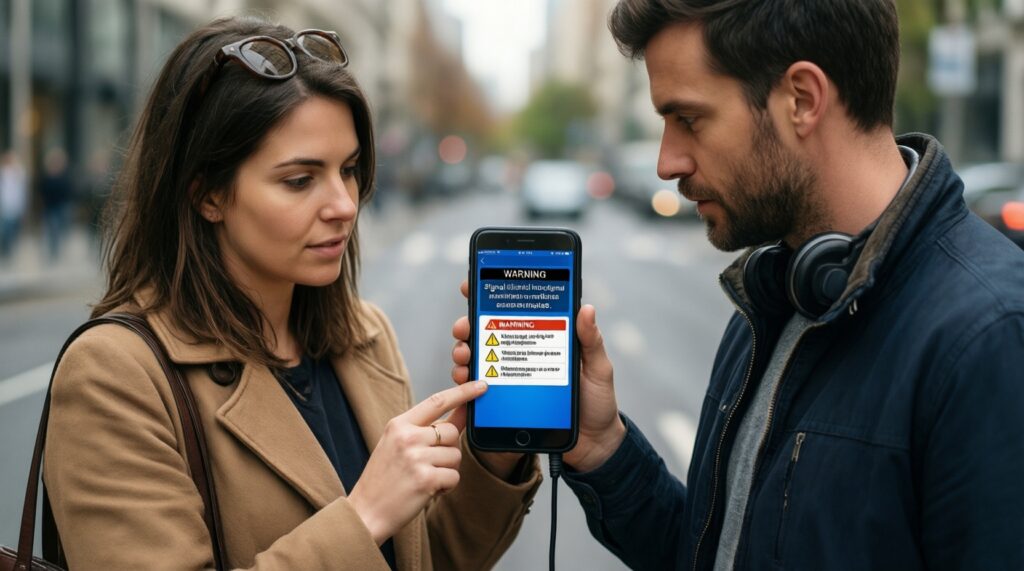
Be careful: unapproved amplifiers can cause interference and may be restricted. When searching ตัวขยายสัญญาณ 5G ราคา, prioritize compliant, certified products and operator-recommended options.