If your daily work depends on seamless cross-device sharing, iOS generally feels more consistent inside Apple-only setups, while Android stays more flexible across brands and file types. For mixed households or frequent switching, choose the ecosystem that matches your primary laptop/tablet and your typical transfer path: photos, large files, or app-to-app links.
Operational summary for immediate choices
- Mostly Apple devices (iPhone + Mac/iPad + Apple TV): prioritize iOS for predictable device pairing and fast local sharing.
- Mixed brands (Windows + various Android phones/tablets): prioritize Android for broader compatibility and easier filesystem access.
- Frequent cross-platform transfers: plan for a bridge (cloud folder, shared drive, or wired transfer) instead of relying on native sharing.
- Photo libraries matter most: pick the ecosystem whose photo app + cloud you will actually maintain, not just install once.
- Enterprise or regulated workflows: choose the platform your MDM/IT policy supports best; don't fight permission models.
- Switching soon: select the platform that offers the cleanest one-time migration path for your current device.
Ecosystem architecture: accounts, cloud sync, and device pairing
Use these criteria to decide what will feel "frictionless" in real life when you เปรียบเทียบ iOS กับ Android-especially for sharing files, syncing photos, and continuing work across devices.
- Primary computer integration: Mac favors iPhone continuity; Windows/Chromebook often aligns more naturally with Android and web-first tools.
- Account gravity: if you already live in Apple ID services (iMessage, Keychain, iCloud Drive) vs Google Account services (Drive, Photos, Password Manager).
- Cloud sync expectations: whether you expect "it just appears everywhere" (tight ecosystem) or "I choose folders/apps to sync" (modular setup).
- Device pairing model: one-vendor pairing (Apple Watch/AirPods) vs multi-brand pairing (many Android accessories) and how often you switch devices.
- File system openness: do you need direct folder structures, downloads management, and moving files between apps without duplication.
- App handoff needs: copying links/text between phone and laptop, resuming browsing, moving documents between tablet/phone.
- Family sharing: shared purchases, shared storage plans, supervised accounts, and how many family members are on each ecosystem.
- Long-term switching cost: how painful it would be to move photos, chats, and paid apps later-important if you're asking ซื้อ iPhone หรือ Android ดี.
Native file sharing compared: AirDrop vs Nearby Share and their limits
Native sharing is best when both devices speak the same language. Once you cross iOS ↔ Android, the workflow changes: you'll rely on cloud, QR links, or a "middle" device (often a laptop). Use the table to pick the least annoying option for each transfer.
| Option | Who it fits | Pros | Cons | When to choose |
|---|---|---|---|---|
| AirDrop (iOS/iPadOS/macOS) | Apple-only households and teams | Fast local transfer; no account sharing; keeps quality for many media types | Does not work directly to Android; discovery can be confusing in crowded places | iPhone ↔ iPhone, iPhone ↔ Mac/iPad for quick files and photos |
| Nearby Share / Quick Share (Android) | Android-to-Android, especially same-vendor devices | Local transfer; no cables; good for large files | Not native to iOS; compatibility varies by device vendor and settings | Android ↔ Android sharing in person, especially repeated use |
| iCloud Drive / Google Drive "shared folder" | Mixed-platform users who can tolerate cloud sync | Cross-platform; predictable access on web/desktop; good audit trail (links) | Upload/download time; storage management; requires account hygiene | Ongoing collaboration and cross-platform file exchange |
| Share link (Drive/Photos/OneDrive) + messaging app | People who send items occasionally | No giant attachments; recipients can download later; avoids Bluetooth/Wi‑Fi pairing | Link permissions can break; recipients may get lower convenience than "receive file" | When you want "send once, done" without managing local discovery |
| Wired transfer via computer (Finder/iTunes on Mac/Windows, Android File Transfer alternatives, MTP) | Power users, large batches, offline transfers | Stable for bulk; avoids cloud; works even with weak Wi‑Fi | Driver/app friction; cable quality matters; folder mapping can be confusing | Big photo/video batches, backups, or restricted networks |
| Third-party cross-platform sender app | Mixed-platform teams needing "AirDrop-like" behavior | Often supports iOS ↔ Android; can batch; sometimes works on local Wi‑Fi | Privacy model varies; background permissions and battery policies can interfere | When you explicitly need แอปแชร์ไฟล์ iPhone ไป Android and want repeatable steps |
Photos and videos: transfer methods, quality retention, and metadata handling
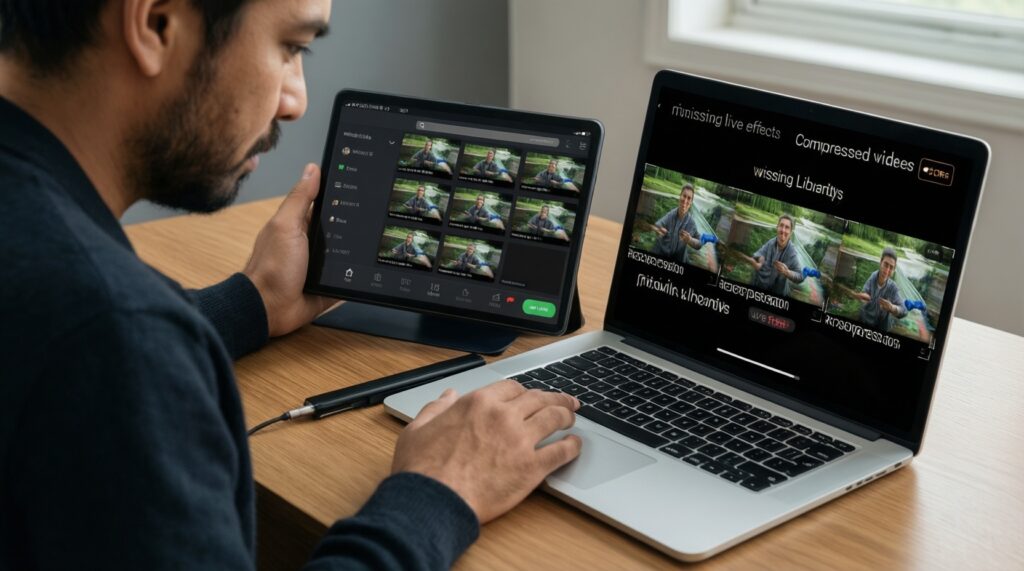
Photos are where cross-platform pain usually shows up: duplicates, missing Live Photos-like extras, incorrect dates, and compressed videos. Choose the method by intent: keep originals, share a viewable copy, or migrate a library.
- If you need to send a few originals quickly (same ecosystem), then use AirDrop (Apple) or Nearby/Quick Share (Android); fallback: create a cloud link with "original quality" enabled and share the link.
- If your goal is โอนรูปจาก iPhone ไป Android while keeping dates and albums, then export via a computer to preserve folder structure; fallback: upload to a single cloud photo library and let the Android device download (expect extra cleanup).
- If you're moving an entire phone and want the least manual sorting, then use the platform's migration tool during device setup; fallback: do a two-step: cloud photo sync first, then move the rest of data.
- If you only need shareable copies for chat/social, then send compressed versions through your messaging app intentionally; fallback: share an album link so recipients can pull higher quality on demand.
- If you care about metadata (location, capture time) for editing workflows, then avoid "Save from chat" and prefer file-based transfer or cloud download; fallback: zip the files before sending to reduce app-level conversions.
Cross-platform bridging: best third-party apps, web workflows, and wired options
Pick a bridge using this quick decision algorithm; stop after the first option that matches your constraints.
- Define the transfer type: (A) one file, (B) batch folder, (C) photo library, (D) ongoing collaboration.
- Check proximity: if devices are together, prefer local transfer; if remote, prefer cloud links.
- Set privacy tolerance: if the file is sensitive, avoid unknown third-party relays; prefer wired or your managed cloud.
- Choose the "home base": decide whether Google Drive/Photos or iCloud Drive/Photos is the authoritative store (one, not both).
- Pick the transport: local sharing (same ecosystem) → cloud folder/link (mixed) → computer cable (bulk/offline) → third-party app (repeatable cross-platform sharing).
- Validate with a test batch: send 5-10 representative items (including a video) and confirm dates, quality, and duplicates before migrating everything.
- Document the repeatable steps: save a note with exact app toggles and share-permission settings for your future self.
Security and permissions: encryption, consent flows, and enterprise constraints
- Assuming "local share" means private by default: discoverability settings can expose your device name to nearby users; tighten visibility before sharing in public.
- Leaving cloud links open: "anyone with the link" is convenient but risky; prefer explicit recipients and expiration where available.
- Not checking photo upload quality settings: a single toggle can change whether you keep originals vs optimized copies; decide before large uploads.
- Breaking consent flow mid-transfer: iOS share sheets and Android permission prompts can time out; keep both screens awake during large sends.
- Ignoring MDM/work profile rules: enterprise containers may block copy/paste, file export, or third-party apps; use approved tools only.
- Granting broad storage/library access unnecessarily: many apps request full photo library; prefer "selected photos" or limited access if supported.
- Confusing backup with sync: deleting from one device can delete from others in sync-based libraries; verify whether your setup is sync or backup-oriented.
- Over-trusting "cleaner" utilities: duplicate removers can delete originals or strip metadata; test on a small sample first.
Reliability and performance: speed, battery impact, and failure modes
- If you mostly share device-to-device in the same room: choose native sharing (AirDrop for Apple pairs; Nearby/Quick Share for Android pairs) → fallback: local third-party app on Wi‑Fi → last resort: cable to a computer.
- If you often share across iOS ↔ Android: choose a single cloud "home base" (Drive or iCloud) → fallback: share download links with strict permissions → last resort: wired batch transfer.
- If you are switching phones entirely: run the official migration during setup (ย้ายข้อมูลจาก Android ไป iPhone or the reverse) → fallback: migrate photos first via cloud → last resort: manual export/import via computer.
Best for Apple-to-Apple continuity and low-friction local sharing: iOS with a mostly-Apple device stack. Best for mixed hardware, broader file handling, and vendor choice: Android with a cloud-first bridge. For cross-platform households, reliability improves most when you standardize one cloud library and reserve native sharing for same-ecosystem moments.
Practical troubleshooting and decision triggers
When does iOS feel meaningfully better than Android for sharing?
When most of your devices are Apple and you regularly share locally (phone ↔ laptop/tablet). The consistency comes from tight device pairing and predictable share targets.
When does Android outperform iOS in real-world file workflows?
When you need flexible file access, folders, and cross-brand accessories. It also helps when your laptop workflow is Windows/web-first and you move many non-photo files.
Why can cross-platform photo transfers create duplicates or wrong dates?
Some paths convert media (messaging apps, "save from chat"), and others re-import with new identifiers. Use file-based transfer or a single authoritative photo library to reduce re-import chaos.
What's the safest default for sending sensitive files between iPhone and Android?
Use your managed cloud storage with restricted recipients, or do a wired transfer via a trusted computer. Avoid unknown third-party relay apps for confidential material.
What should I do if local sharing cannot discover the other device?
Verify both devices are unlocked, on compatible Wi‑Fi/Bluetooth settings, and set to visible to contacts/nearby as intended. If discovery still fails, switch to a share link or cable.
How do I avoid quality loss when sending videos?
Do not send as chat attachments if you need originals. Share a cloud link to the original file or move the file via cable/computer.