If your goal is to pick the best stylus by performance, test four things in a repeatable way: latency (stroke-to-ink delay), jitter (line wobble), palm rejection stability, and accuracy (tip offset/parallax and pressure mapping). The "best" option depends on your device digitizer and your persona: designer, student, engineer, or business note-taker.
Performance Snapshot: Lag, Jitter, Palm Rejection, Accuracy
- Lowest perceived lag usually comes from an OEM stylus matched to the tablet's digitizer (not from generic capacitive pens).
- Jitter shows up most on slow diagonal lines and when the app's smoothing is disabled.
- Palm rejection is a system feature first, stylus feature second; failures are often app or glove-related.
- Accuracy problems are typically edge-offset, parallax on laminated vs non-laminated displays, or mis-calibration after screen protectors.
- For "ปากกาสไตลัส เขียนลื่น ไม่หน่วง", prioritize digitizer compatibility + stable line rendering over extra buttons and marketing specs.
Measuring Latency: Instruments, Metrics and Repeatable Protocols
Use these criteria to run a stylus test you can repeat across devices, apps, and pen models-useful when deciding ปากกาสไตลัส รุ่นไหนดี without relying on feel alone.
- Same device + same app build: lock OS version, app version, and refresh-rate settings; disable battery savers that throttle input.
- Two latency metrics: (a) perceived "ink follow" delay during fast strokes, and (b) start-lag (time from first contact to visible ink).
- Recording method: film the screen at the highest available frame rate; compare frame-by-frame start and stroke tracking. Keep lighting stable to reduce rolling-shutter artifacts.
- Stroke protocol: do three speeds (slow, medium, fast) and three directions (horizontal, vertical, diagonal). Repeat each 5-10 times.
- App controls: test once with smoothing/"stabilizer" off and once with it on; record both results because smoothing can hide jitter while increasing perceived lag.
- Tip + surface: run tests on bare glass and with your actual screen protector; some protectors increase friction and amplify micro-wobble.
- Palm condition: test bare hand, sleeve contact, and (if used) drawing glove; palm rejection failures are often scenario-specific.
- Edge vs center: measure accuracy and latency in the center and near edges/corners; edge distortion is a common reason notes look "off."
Assessing Line Stability: Quantifying Jitter and Wobble
Jitter is easiest to see when you remove "help" from the software. For intermediate users, the cleanest comparison is: use the same brush (no texture), same thickness, stabilizer off, then draw slow diagonals and long curves.
| Variant | Who it fits | Pros | Cons | When to choose |
|---|---|---|---|---|
| OEM active stylus for iPad (Apple Pencil class) | Designer, illustrator, anyone doing precise handwriting | Typically strongest line stability, strong palm rejection integration, consistent tilt/pressure behavior | Locked to ecosystem; decisions often tied to "ปากกาสไตลัส iPad ราคา" rather than pen-only cost | Pick if your workflow needs predictable diagonals, inking, or dense notes on iPad |
| OEM active stylus for Samsung/Android with digitizer (S Pen class) | Student and business note-taker on supported Android tablets/phones | Good stability and low start-lag on compatible models; solid palm rejection in native note apps | Varies by device generation; third-party apps can behave differently | Choose when your device explicitly supports it and you want reliable lecture notes and markup |
| USI stylus (for supported Chromebooks/tablets) | Student, light sketching, classroom and web annotation | Interoperable across USI devices; acceptable stability for notes | Line stability and pressure feel can vary by device implementation; not "one feel fits all" | Select if you switch devices and need cross-device compatibility more than top-tier drawing feel |
| Third-party active stylus that mimics OEM (device-specific) | Budget-focused users who still want active pen behavior | Often decent for handwriting; can be a practical way to "ซื้อปากกาสไตลัส" without paying for flagship branding | May lack full pressure/tilt; palm rejection and jitter can be inconsistent across apps | Pick when you mainly take notes and can accept fewer pro art features |
| Bluetooth stylus without a true digitizer pairing (acts like a "smart" capacitive pen) | Business markup, simple taps, presentation control | Extra shortcuts; can feel convenient for UI navigation | Won't fix inherent capacitive wobble; palm rejection is usually not robust for handwriting | Choose only if your priority is shortcuts, not line quality |
| Generic capacitive disc/mesh stylus | Occasional users, signing forms, rough scrolling | Works on almost any touchscreen; cheap and widely available | Highest jitter and slow-diagonal wobble; no true palm rejection; weak accuracy near edges | Choose only for occasional taps/signatures-not for "ปากกาสไตลัส เขียนลื่น ไม่หน่วง" expectations |
Persona lens (quick read): Designers should bias toward OEM digitizer-matched pens; students can accept USI/compatible OEM alternatives; engineers doing diagram precision should prioritize stability on slow diagonals; business users can prioritize reliability + quick markup over pressure nuance.
Evaluating Palm Rejection: Test Scenarios and Common Failure Modes
Run palm rejection tests as "if..., then..." scenarios so you can diagnose whether failures are caused by the pen, the app, your grip, or the OS.
- If your palm triggers random dots while writing, then retest in the device's first-party notes app; if it improves, the issue is app-level palm handling or brush settings.
- If palm rejection fails only when charging or when the tablet is on a metal desk, then suspect electrical noise/grounding; retest unplugged and on a different surface.
- If you get stray strokes when your sleeve touches the screen, then test with a glove or change sleeve material; some fabrics register as touch on certain panels.
- If your palm rejection is fine in portrait but fails in landscape, then check orientation-specific app settings and toolbar placement; some apps treat the "palm zone" differently.
- If only edge areas misbehave (accidental touches near bezels), then enable any OS edge-touch prevention and avoid writing too close to the digitizer's weakest boundary region.
Accuracy and Calibration: Tip Offset, Parallax and Pressure Mapping
- Confirm your device supports an active pen digitizer; if not, stop expecting pro accuracy from any "pen"-that's the biggest hidden constraint behind ปากกาสไตลัส Android ราคา comparisons.
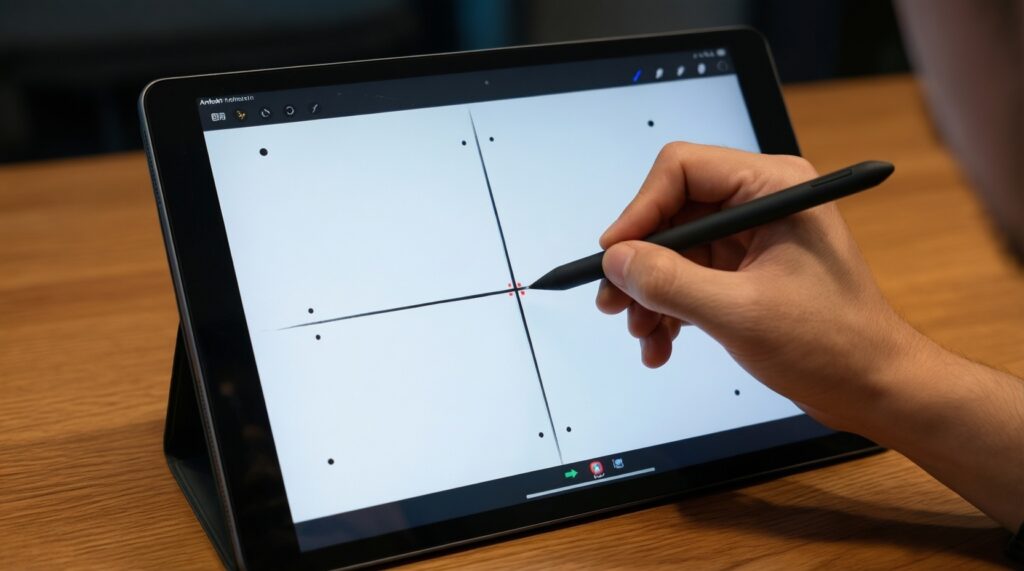
- Test center vs edges: draw crosshairs and dots near each corner; look for consistent tip-to-ink offset.
- Remove or change screen protector and retest if offset suddenly worsened; thick protectors can increase parallax and skew feel.
- Check app calibration options (if available) and reset pen settings; avoid stacking multiple "stabilizers" (OS + app) that can distort control.
- Validate pressure mapping: draw a pressure ramp (light to heavy) and see if the curve is smooth or jumpy; jumpiness often equals weak pressure resolution or poor app support.
- Validate tilt behavior (for shading/brush angle): if tilt feels binary (on/off), the pen/app combo likely isn't exposing nuanced tilt data.
- Re-run the same test in a second app; if accuracy issues disappear, your "problem" is software rendering, not hardware tracking.
Real-world Workflow Tests: Drawing, Note-taking and Markup Comparisons
- Picking a pen based on shortcuts/buttons, then discovering your primary app doesn't support them.
- Confusing heavy smoothing with "better pen": it can hide jitter but add lag and reduce control for quick hatching.
- Testing only fast scribbles; slow diagonals reveal wobble that ruins technical drawings and neat handwriting.
- Ignoring edge performance; many users write margins and bullet lists near the left/right edges where accuracy can degrade.
- Comparing across different nib friction: a slippery tip can feel "fast" but reduce precision, especially for engineers drawing straight constraints.
- Assuming palm rejection is "in the pen"; it's usually the device + OS + app combination.
- Not matching the stylus to the device digitizer standard (OEM vs USI vs none), leading to disappointment after you "ซื้อปากกาสไตลัส".
- Overweighting price discussions like ปากกาสไตลัส iPad ราคา while ignoring whether your tasks need pressure/tilt at all.
Comparative Results Table and Practical Interpretation
Best fit typically looks like this: for a designer, choose an OEM digitizer-matched stylus (Apple Pencil/S Pen class) for the most predictable lag and jitter behavior; for a student, OEM or USI is usually the safest for stable palm rejection in note apps; for an engineer, prioritize the combo that draws slow diagonals cleanly with minimal offset; for business markup, a reliable active stylus is preferable, while generic capacitive pens are mainly for occasional taps and signatures.
Practical Questions Users Ask About Stylus Performance
How can I tell whether lag is from the stylus or the app?
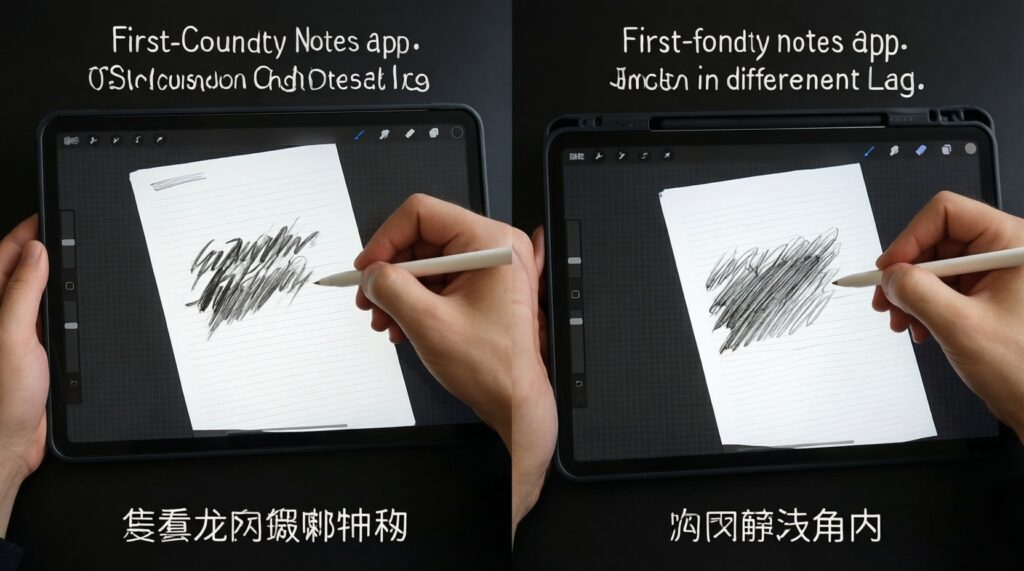
Test the same strokes in the device's first-party notes app and in your main app with stabilizer off. If lag changes a lot between apps, it's mostly software rendering and smoothing, not the pen.
Why do my lines wobble even with a "good" stylus?
Slow diagonal strokes expose digitizer sampling and app filtering limits. Disable stabilizers to see true tracking, then re-enable only the minimum smoothing you need.
Does "ปากกาสไตลัส รุ่นไหนดี" depend more on the pen or the tablet?
More on the tablet's digitizer and OS input stack. A great pen on an unsupported device behaves like a basic touchscreen pointer.
Is a higher "ปากกาสไตลัส iPad ราคา" automatically better for writing?
Not automatically, but iPad OEM-class options tend to deliver consistent palm rejection and low start-lag on compatible models. If you only annotate PDFs, a simpler compatible active stylus may be enough.
How should I evaluate "ปากกาสไตลัส Android ราคา" without getting trapped by specs?
Confirm your exact device supports an active digitizer standard (OEM/USI). Then test edge accuracy and palm rejection in your actual note app; those matter more than advertised features.
What's the fastest way to check palm rejection before I "ซื้อปากกาสไตลัส"?
Borrow or test in-store: rest your palm, write in small text, and intentionally brush the screen with your sleeve. If you see stray dots or scrolls, the device/app combo is not stable for your style.
What should I prioritize for "ปากกาสไตลัส เขียนลื่น ไม่หน่วง"?
Device-digitizer compatibility first, then line stability on slow diagonals, then consistent start-lag. Friction (tip + protector) affects "smoothness" but doesn't fix tracking quality.