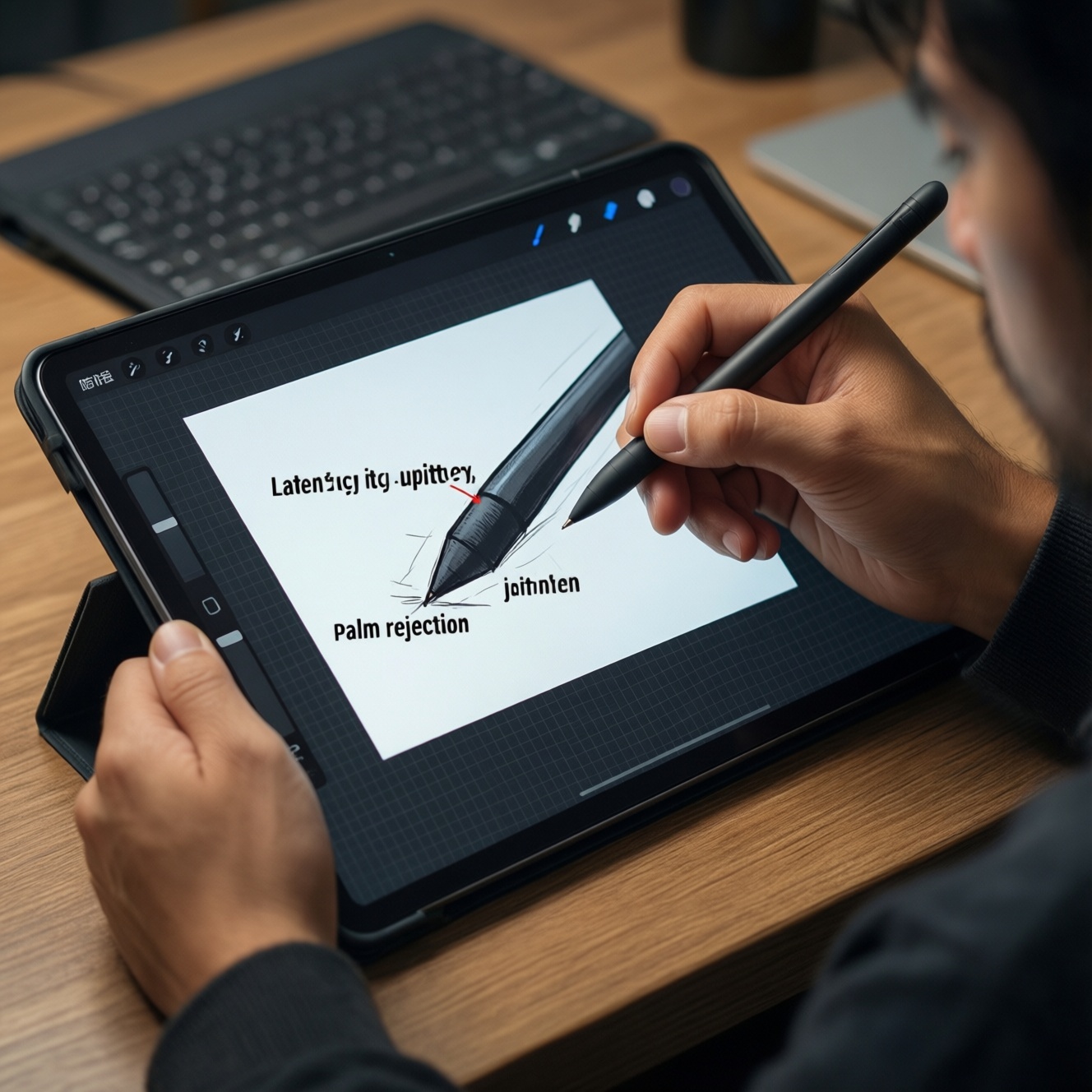
A solid stylus choice comes down to four measurable behaviors: perceived latency (delay), line jitter (wobble), palm rejection reliability, and positional accuracy (cursor/ink alignment). Use the test protocols below on your own device and app, then pick a stylus class that matches your persona (artist, note-taker, annotator, gamer) and your platform constraints.
Performance snapshot: latency, jitter, palm rejection and accuracy
- Latency: prioritize system-level active pens for handwriting and fast strokes; passive capacitive tips are fine for slow taps and simple navigation.
- Jitter: the limiting factor for straight lines and small text; look for stable diagonal strokes and consistent slow-line behavior.
- Palm rejection: depends on the device + digitizer + app; a great pen can still fail if the app doesn't use the right input stack.
- Accuracy: edge drift and parallax matter more than center-of-screen behavior; test corners and edges before buying.
- Workflow fit: artists need pressure/tilt and stable diagonals, note-takers need low-miss palm rejection, annotators need consistent cursor alignment, gamers need low-latency taps and predictable contact.
Measuring latency: protocols, sample rates and repeatability
- Use a repeatable gesture: fast "S" curves and long diagonals at two speeds (slow and fast) to reveal both delay and smoothing artifacts.
- Lock the same app and brush: pick one inking tool and keep stabilization/smoothing fixed; otherwise you're benchmarking the app, not the pen.
- Disable power-saving side effects: low-power modes can increase input processing delay and reduce digitizer sampling consistency.
- Check system input path: active stylus APIs (platform-specific) typically outperform generic touchscreen input for inking latency.
- Test at the same refresh context: keep display mode constant (e.g., normal vs high refresh) because perceived latency is tied to frame pacing.
- Repeat at least three passes: if results vary stroke-to-stroke, you likely have palm rejection conflicts, app filtering changes, or intermittent Bluetooth/link issues.
- Include "pen-down to first ink": taps that fail to start a stroke quickly are more disruptive than a slightly delayed line during continuous drawing.
- Document the environment: screen protector type, glove use, and nib wear all change friction and can masquerade as latency problems.
Quantifying line jitter: metrics, visualization and thresholds
Evaluate jitter with three visuals: (1) slow straight line, (2) slow diagonal line, (3) small handwriting at the same zoom. A "pass" for intermediate work is: straight lines look straight without relying on heavy stabilization, diagonals don't show periodic wobble, and small text doesn't break into micro-zigzags. If you must enable strong stabilization to hide wobble, treat that as a jitter fail because it also adds stroke lag and corner rounding.
| Variant | Who it suits | Pros | Cons | When to choose |
|---|---|---|---|---|
| Apple Pencil (iPad active stylus class) | Artists, note-takers on iPad | Typically minimal jitter; strong integration with iPadOS input stack; consistent diagonals in supported apps | iPad-only ecosystem constraint; value depends on ปากกา Apple Pencil ราคา vs your usage frequency | When you plan to ซื้อปากกาสไตลัส iPad primarily for handwriting, sketching, or markup with palm-on-glass posture |
| Samsung S Pen / EMR active stylus class | Android note-takers, annotators, some artists | Good low-speed stability; reliable hover/cursor behaviors on supported devices; usually good palm rejection in OEM apps | Device-dependent feel and app variance; edge accuracy varies by model | When you need a ปากกา stylus สำหรับแท็บเล็ต Android with consistent note workflows and OEM-level support |
| USI active stylus class (Chromebook/compatible tablets) | Students, office annotators | Interoperable within USI ecosystem; adequate for notes and PDFs | Jitter and latency can vary by device panel and firmware; not always ideal for fine art lines | When your device explicitly supports USI and your priority is class/meeting notes over illustration |
| Bluetooth active capacitive pen (generic "active stylus") | Casual note-takers, occasional markup | Works on many tablets/phones; often inexpensive and easy to find locally in Thailand | Can show diagonal wobble; palm rejection is usually not "true" system palm rejection and depends on app hacks | When you need broad compatibility and accept some jitter for light use-often the answer people mean by ปากกาสไตลัส ยี่ห้อไหนดี |
| Passive capacitive stylus (disc tip / rubber tip) | Navigation, simple taps, large handwriting | No battery; universal touchscreen compatibility | Highest jitter risk for slow lines; no palm rejection; thick line control | When you only need a pointer for tapping, not precision inking or palm-on-screen writing |
Evaluating palm rejection: test scenarios and failure modes
Palm rejection is a system behavior, not just a pen feature. Treat "palm rejection" claims as unproven until you run the same posture you'll use daily, because ปากกาสไตลัส palm rejection ราคา alone doesn't guarantee reliability.
- If strokes break when your palm lands first, then switch the app to its dedicated pen/ink mode (not finger drawing) and retest.
- If two-finger gestures (zoom/scroll) trigger randomly while writing, then disable "draw with finger" (or equivalent) and reduce gesture sensitivity in app settings.
- If the pen draws but your palm still scrolls the page, then use an app that supports platform stylus APIs; generic canvas apps often treat everything as touch.
- If dots/short lines appear when you rest your hand, then test with a thin glove or sleeve and inspect nib wear; intermittent contact can look like phantom touches.
- If palm rejection works in the OEM notes app but fails in a third-party app, then the limitation is the app's input implementation-change app before changing hardware.
Assessing positional accuracy: calibration, parallax and drift
- Pick your main app and disable extreme stabilization so you can see true alignment behavior.
- Draw crosshairs (small "+") at the center and each corner; verify the ink lands exactly under the tip, not offset.
- Check edge drift by drawing a slow line along the screen border; note any increasing offset near edges.
- Evaluate parallax by changing viewing angle; if the tip-to-ink relationship changes a lot, your workflow needs a lower-parallax setup (display + protector + pen pairing).
- Retest after reconnect (Bluetooth re-pair or device wake) to catch state-related offset that appears only after sleep.
- Confirm palm posture while doing the corner tests; some systems shift rejection zones near edges and impact accuracy during real writing.
Comparative test rig: devices, apps, stylus types and data capture
- Benchmarking different apps per pen: you end up comparing software smoothing and prediction, not hardware behavior.
- Leaving stabilization on "auto": many apps change smoothing dynamically based on speed, hiding jitter at the cost of extra lag.
- Testing only fast scribbles: jitter often appears at slow speed and on diagonals, not during quick strokes.
- Ignoring screen protectors: matte films add friction and can amplify micro-wobble in your hand, which looks like digitizer jitter.
- Not checking corners/edges: many setups look perfect in the middle but drift near edges where PDF annotation often happens.
- Assuming "active pen" means full support: some generic active capacitive pens still behave like touch and won't provide true palm rejection.
- Comparing on low battery: some pens throttle sampling or become inconsistent as the battery depletes.
- Misreading hover/cursor as accuracy: hover helps targeting, but ink alignment under contact is what matters for handwriting.
Interpreting numbers for users: recommendations by persona
For most iPad workflows, the iPad active stylus class (Apple Pencil) is usually the cleanest path for low perceived latency and stable lines when you ซื้อปากกาสไตลัส iPad. For Android, OEM-supported active pens (e.g., S Pen/EMR class) are typically the safer pick for consistent palm rejection than generic options when choosing a ปากกา stylus สำหรับแท็บเล็ต Android.
Artist (illustration, clean inking)
- Prioritize the variant that passes slow diagonal lines without heavy stabilization.
- Test edge accuracy on a blank canvas and on your real brush set.
- Choose platform-native active stylus support first; treat generic active capacitive pens as "sketch only."
- If you must use a matte protector, retest jitter with your typical grip pressure.
Note-taker (lectures, meetings, long sessions)
- Make palm rejection the first gate: sustained writing with your palm fully down should not scroll or create stray marks.
- Prefer OEM notes apps for initial testing; if it works there, expand to your preferred app.
- Reject setups that miss pen-down starts or break strokes when you pause.
- Use consistent nibs and replace worn tips early to avoid false "palm issues."
Annotator (PDFs, screenshots, reviewing)
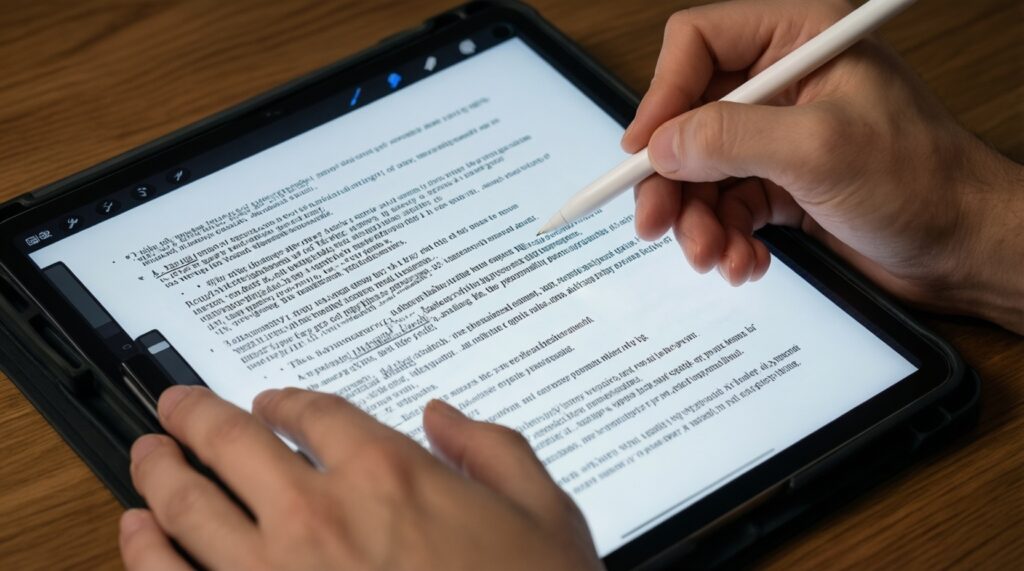
- Validate accuracy near margins because annotations often live at edges.
- Ensure the app supports stylus-only inking so touch remains for scrolling/zooming.
- Pick a pen with stable cursor/hover if your device supports it, but still confirm contact alignment.
- Optimize for predictable line start rather than brush expressiveness.
Gamer (quick taps, UI precision, rhythm/aim aids)
- Prefer low perceived latency and consistent tap registration over pressure/tilt features.
- Avoid heavy app-level smoothing that can delay movement or over-correct.
- Test rapid repeated taps near screen edges where touch controllers can behave differently.
- If you're shopping by ปากกาสไตลัส ยี่ห้อไหนดี, eliminate options that require frequent reconnecting or have inconsistent pen-down detection.
| Persona | Latency priority | Jitter tolerance | Palm rejection requirement | Accuracy focus | Real-world impact if it fails |
|---|---|---|---|---|---|
| Artist | High | Low | Medium | High (especially diagonals + edges) | Wobbly ink lines, slow-feeling strokes, corners rounded by stabilization |
| Note-taker | Medium | Medium | High | Medium | Broken words, accidental page scroll/zoom, fatigue from guarding your palm |
| Annotator | Medium | Medium | High | High (edge drift) | Misplaced highlights, inaccurate markup, constant undo/redo |
| Gamer | High | High | Low | Medium | Missed taps, delayed actions, inconsistent aiming on UI elements |
Practical clarifications, common failure causes and quick fixes
Why does the same pen feel fast in one app and laggy in another?
Apps differ in prediction, smoothing, and render pipeline. Retest with stabilization off and confirm the app is using the platform's stylus API rather than generic touch input.
My lines wobble only when I draw slowly-what does that indicate?
That pattern usually points to digitizer noise/jitter being exposed when speed-based smoothing can't hide it. Compare slow straight and slow diagonal lines; if both wobble, change stylus class or device/app combination.
Palm rejection works in the default notes app but fails in my favorite app-should I buy a new stylus?
Usually no. It's commonly an app input-mode issue; switch to an app that supports stylus-only inking or configure "finger = pan, pen = ink" properly.
Why is accuracy worse near the edges of the screen?
Many digitizers show edge distortion and different rejection zones at borders. If edge drift is consistent, prefer a platform-native active stylus setup and test without thick screen protectors.
Does a higher ปากกา Apple Pencil ราคา automatically mean better palm rejection?
Price alone doesn't guarantee it; palm rejection depends on device support and app behavior. Validate with your real writing posture and your preferred apps before deciding.
What's the fastest way to sanity-check ปากกาสไตลัส palm rejection ราคา claims in a shop?
Open a notes app, rest your palm fully, and write a full line without lifting the hand. If the page scrolls, zooms, or drops strokes, treat it as a fail for note-taking.