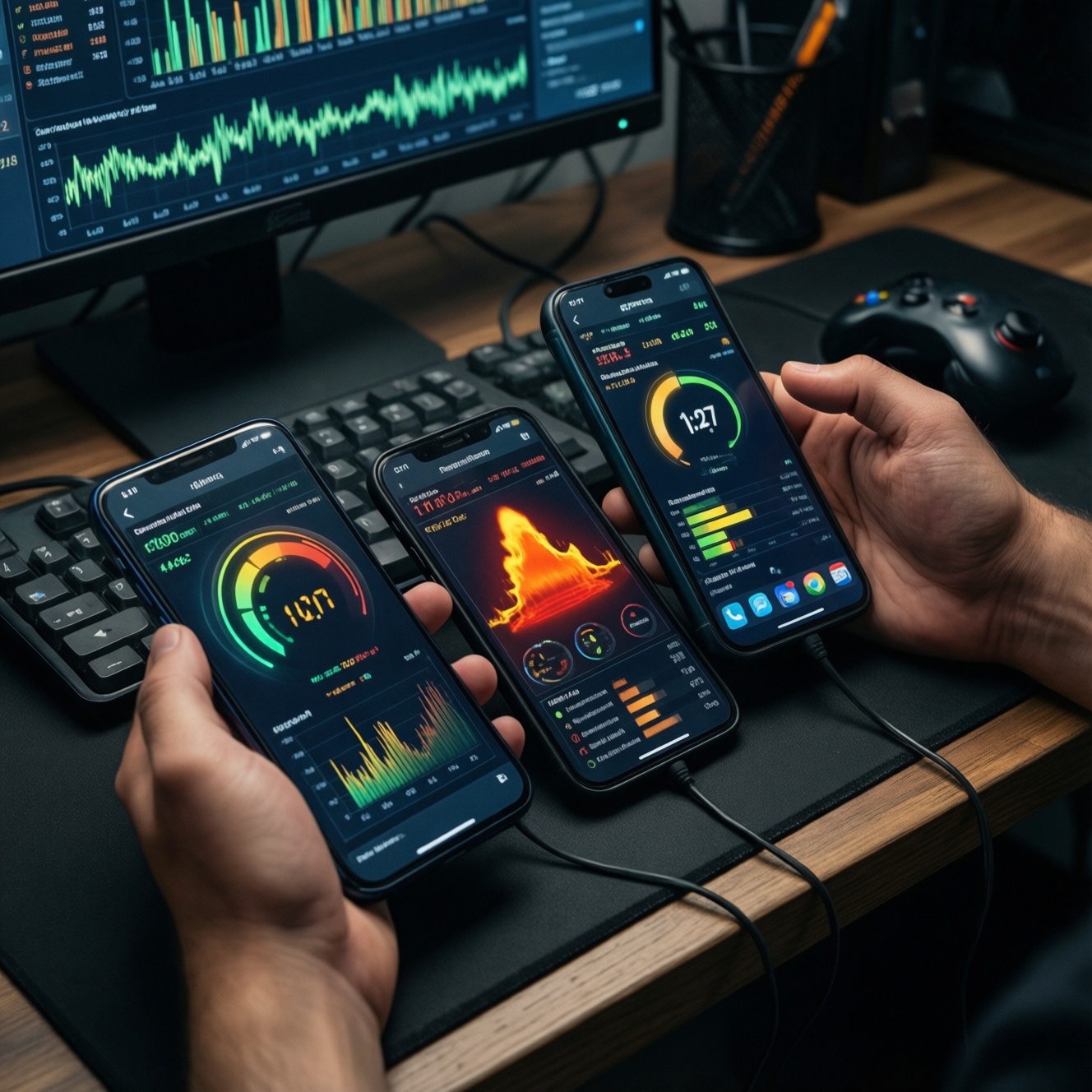
To quantify heat and throttling during long gaming sessions, run a repeatable 60‑minute test while logging FPS, frame time, temperatures, clocks, and power. You're looking for specific drop patterns (sudden step-downs, gradual decay, periodic oscillation) that map to thermal limits, power limits, or background load. Start with read-only checks before changing settings.
Test summary and quick reference
- Use one fixed game scene and identical graphics settings to make runs comparable.
- Log both FPS and frame time; FPS alone can hide stutter.
- Identify the drop pattern first, then confirm with temps/clocks/power.
- Start with safe, reversible steps (airflow, case removal, background apps) before tuning.
- For buyers comparing devices (e.g., "รีวิวมือถือเล่นเกม ไม่ throttling"), focus on sustained performance, not peak FPS.
Mechanics of thermal throttling in prolonged gaming
Thermal throttling is the device intentionally reducing CPU/GPU frequency (and sometimes voltage) to keep temperatures within safety limits. In phones, this often happens even earlier than you expect because the chassis and skin temperature limits matter as much as the chip temperature.
What you typically notice during a long session (symptom-first):
- Sudden FPS step-down (e.g., from "smooth" to clearly lower and stable).
- Gradual FPS decay over 10-30 minutes (slowly worsening performance).
- Periodic stutter waves (short spikes in frame time every 30-120 seconds).
- Input feels delayed while FPS looks "okay" (frame-time variance).
- Device feels hot to the touch even if the game is not visually demanding.
If your goal is "มือถือเล่นเกม ไม่ร้อน" (gaming without feeling hot), measure sustained chassis comfort and stability, not only the max FPS in the first 3 minutes.
Setting up reproducible stress tests and baseline conditions
Follow this read-only checklist to make your throttling test repeatable and comparable between runs and devices.
- Charge to a consistent level (ideally mid-range) and keep the same charging state each run (charging vs not charging).
- Fix ambient conditions: same room, no direct sun, same case/on/off, same surface (desk vs bed).
- Lock screen brightness and refresh rate (fixed 60/90/120 if possible).
- Enable a stable network mode (Wi‑Fi only, or airplane mode if the game allows offline) to reduce background variance.
- Close all background apps; disable downloads/updates; confirm no system update is pending.
- Use the same game scene: a repeatable route, training range, or benchmark loop for 60 minutes.
- Keep graphics settings constant (resolution, effects, FPS cap, anti-aliasing, "performance mode").
- Pick one logging method and keep it constant:
- On Android: Perfetto/System Tracing, or vendor performance overlays (read-only).
- In-game: built-in FPS/frametime graphs, if available.
- Record starting device temperature by touch and by sensor if your tool exposes it.
- Do a short 3-5 minute warm-up, then start the "official" 60-minute run so the ramp-up is consistent.
For "สมาร์ทโฟนเกมมิ่ง ระบายความร้อน" comparisons, run the same loop on each device with the same brightness, same case policy, and the same FPS cap; otherwise cooling conclusions won't hold.
Essential metrics to log: FPS, frame time, temps, clocks, power
Log the metrics below at a consistent interval (e.g., every 5 minutes manually, or continuously via a trace). Then map the symptom you see (especially "มือถือเล่นเกม เฟรมเรตตก") to likely causes and the fastest confirmation checks.
| Symptom | Possible causes (most likely first) | How to verify (read-only first) | How to fix (low risk → higher risk) |
|---|---|---|---|
| FPS drops suddenly and stays lower | Thermal limit hit; power limit engaged; game switches quality tier | Check temperature trend right before the drop; confirm CPU/GPU clocks step down and stay down | Lower FPS cap; reduce resolution/effects; improve airflow; remove thick case; avoid charging while playing |
| FPS gradually declines over 10-30+ minutes | Heat soak in chassis; sustained power budget reduction; background heat (radio, charging) | Temps slowly rise while clocks slowly sag; power draw reduces over time even at same scene | Stabilize ambient; keep back of phone exposed; use a fan; reduce brightness; lock to a lower, stable FPS |
| Frame-time spikes (stutter) but average FPS looks acceptable | CPU scheduling/GC; shader compilation; background services; storage throttling | Look for periodic frame-time spikes not correlated with temperature jumps; check if spikes align with notifications/sync | Disable/limit background sync; clear game cache (if safe); reboot before test; avoid overlays/recorders |
| Oscillating performance: fast-slow-fast cycles | Thermal control loop hunting; aggressive governor; unstable cooling contact | Clocks and temps oscillate together; power draw pulses; repeating cycle length | Lower graphics slightly to avoid crossing the threshold; ensure consistent airflow; avoid insulating grips/cases |
| Device feels very hot but FPS remains stable | Skin temperature rises while SoC still within limits; high brightness; hotspot near battery | Compare SoC temp vs surface feel; note if brightness is high and sustained | Reduce brightness; take breaks; use a thin case or none; consider a cooler if comfort matters |
| High FPS at start, then sharp drop when recording/streaming | Encoder load; additional thermal/power load; memory bandwidth pressure | Run A/B: same scene with and without recording; compare clocks/power | Lower recording resolution/bitrate; use 30 fps recording; prefer hardware encoding settings |
When you see content claiming "มือถือ Snapdragon เล่นเกมลื่น ไม่ร้อน", validate it by checking sustained clocks and stable frame time at your target FPS cap; "not hot" claims often depend on brightness, case, and whether the phone is charging.
Reading the data: patterns of frame drop and what they indicate

Use this ordered sequence to troubleshoot quickly and safely. Steps are sorted by probability and speed of verification, with read-only checks first.
- Confirm repeatability: rerun the same 10-minute segment twice with identical settings; if results differ widely, your environment/background load is dominating.
- Separate average FPS vs frame time: if FPS looks fine but gameplay feels worse, prioritize frame-time spikes and background tasks over temperature.
- Correlate the first drop with temperatures: find the timestamp where FPS/frametime changes; check whether temps peaked right before it.
- Check clocks for a step-down: a clear frequency step that persists points to throttling/power limits rather than scene complexity.
- Run a controlled graphics A/B: lower only one heavy setting (resolution or shadows) and repeat; if the drop moves later, you were near the thermal/power edge.
- Test charging vs not charging: repeat the same run unplugged; if stability improves, you're hitting combined thermal load (SoC + charging heat).
- Test case on vs off: remove thick/insulating cases; if the throttle onset is delayed, heat rejection is your bottleneck.
- Stabilize with an FPS cap: cap to a slightly lower FPS; if frame time becomes consistent, you're trading peak performance for sustained smoothness (often the best fix).
- Escalate to vendor/game performance modes carefully: enable a performance mode only after you have a baseline; it can increase heat and trigger earlier throttling in some conditions.
Practical fixes and tuning: drivers, power limits, and cooling upgrades
Escalate when any of the following is true: throttling happens within minutes at modest settings, the device becomes uncomfortably hot in normal use, or stability changes drastically after an OS/game update.
- Contact support / service if: the phone overheats outside gaming, shuts down, shows battery swelling, or throttles abnormally after a repair.
- Suspect software regressions if: throttling behavior changes immediately after a firmware update or a specific game patch; capture a trace/screenshot of overlays and report to vendor/game.
- Consider cooling accessories if: your target is sustained high FPS for long sessions; a clip-on cooler or external airflow often provides the most predictable improvement with low configuration risk.
- Avoid risky "tuning" first: don't jump to developer options, thermal config tweaks, or unofficial tools before you've proven the limit with logs; many changes reduce stability or void warranties.
- Be careful with performance modes: they can help short bursts but may worsen long-session "เฟรมเรตตก" by pushing the device into the thermal wall sooner.
Example session: 60-minute playthrough with tabulated results
Use this template to record results every 10 minutes. Fill clocks/temps/power with whatever your tool exposes (exact sensors vary by device). The goal is spotting the pattern, not chasing a single absolute number.
| Time | FPS | Frametime | CPU/GPU temp | Clocks | Power |
|---|---|---|---|---|---|
| 00:00 | Baseline (start of loop) | Baseline (note spikes) | Start temps | Start CPU/GPU clocks | Start power draw |
| 10:00 | Record | Record | Record | Record | Record |
| 20:00 | Record | Record | Record | Record | Record |
| 30:00 | Record | Record | Record | Record | Record |
| 40:00 | Record | Record | Record | Record | Record |
| 50:00 | Record | Record | Record | Record | Record |
| 60:00 | End state | End state | End temps | End clocks | End power draw |
Prevention practices that keep long sessions stable (and help you reach the "มือถือเล่นเกม ไม่ร้อน" feel):
- Cap FPS to a sustainable target rather than chasing peak FPS.
- Prefer lowering resolution/shadows first; keep texture quality if you have enough memory.
- Keep the back of the phone exposed; avoid thick cases and insulating grips during long sessions.
- Don't play while fast-charging if you care about sustained performance and comfort.
- Use steady airflow (fan) for the most reliable improvement without changing software.
- Reboot before competitive sessions to reduce background variance and periodic stutter.
- Disable unnecessary overlays/recording unless you've tested their thermal impact.
Typical symptom scenarios and immediate diagnostics
My FPS is high for 5 minutes, then drops and never recovers. Is that throttling?
Most likely, yes. Confirm by checking for a clear step-down in CPU/GPU clocks at the same timestamp as the FPS drop, usually alongside a temperature peak.
I don't see big FPS drops, but it feels stuttery after 20-30 minutes.
Focus on frame time. Periodic spikes often come from background tasks, shader compilation, or recording overlays rather than pure thermal throttling.
Why does "มือถือเล่นเกม เฟรมเรตตก" happen sooner when I'm charging?
Charging adds heat and consumes power budget, pushing the device into thermal or power limits earlier. Repeat the same test unplugged to confirm.
Does removing the phone case actually help sustained gaming?
Often yes, especially with thick or rubberized cases. If throttle onset is delayed case-off with the same settings, heat rejection is your bottleneck.
How do I evaluate claims like "รีวิวมือถือเล่นเกม ไม่ throttling" fairly?
Demand a sustained run with logs (FPS + frame time + temps/clocks) for at least a long session, using fixed brightness and identical settings. Peak FPS in short clips is not enough.
If I want "มือถือ Snapdragon เล่นเกมลื่น ไม่ร้อน", what single setting helps most?
An FPS cap slightly below the peak stable value is usually the best one-change fix. It reduces power spikes, smooths frame time, and delays or avoids thermal limits.
When should I stop testing and seek service?
If the device overheats in normal use, shuts down, shows battery swelling, or becomes dangerously hot to touch, stop and contact official support.