
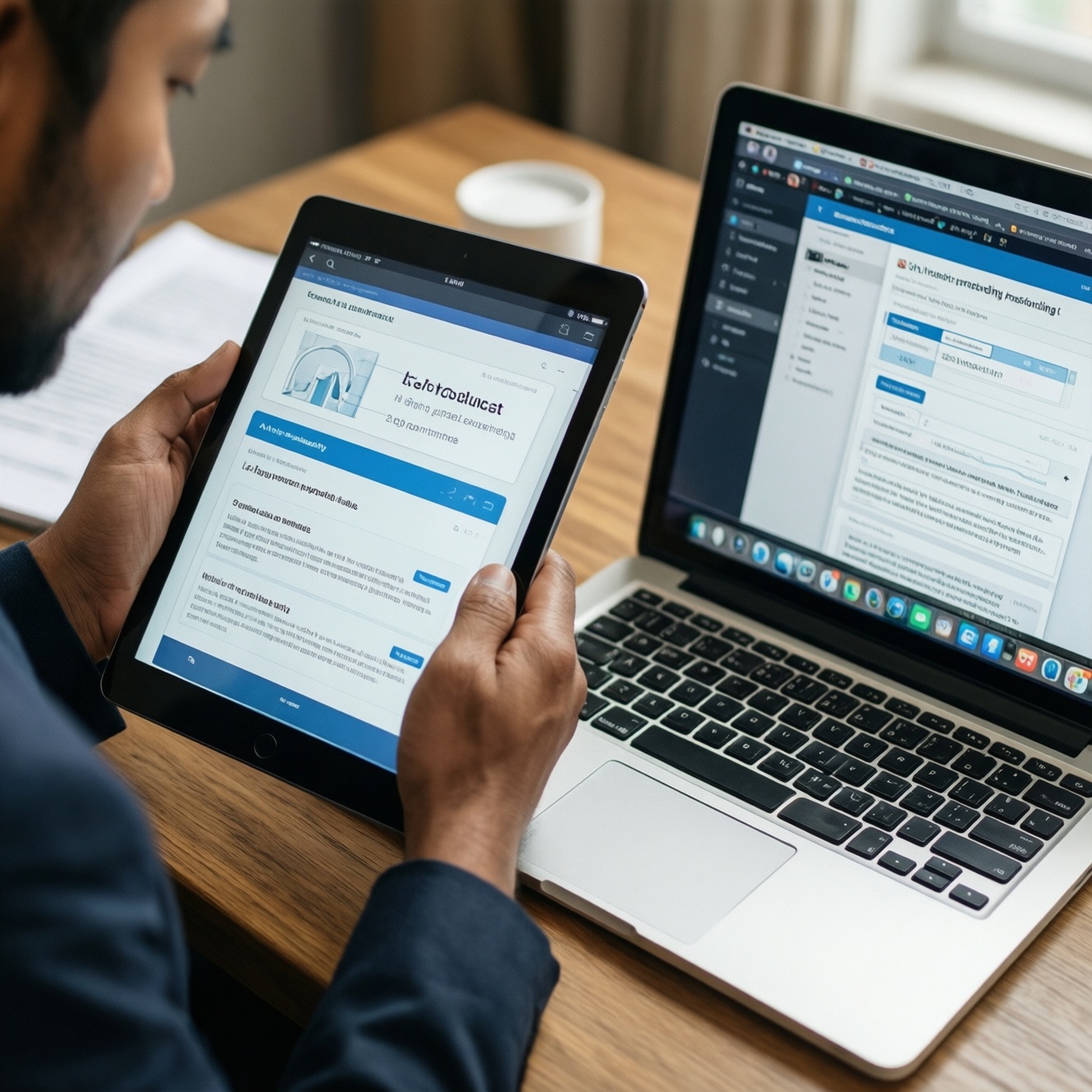
A tablet can replace a laptop without compromise for consumption, communication, note-taking, and many "light productivity" workflows-especially when paired with the right apps and file-handling habits. A laptop still wins for heavy multitasking, pro desktop software, local development, and complex peripherals. Choose by tasks first, then OS ecosystem, keyboard/trackpad needs, and storage.
At-a-Glance: Which Tasks Tablets Truly Replace
- Tablet-only works well for reading, streaming, meetings, messaging, annotations, and quick edits.
- Tablet with accessories is the sweet spot for writing-heavy work, classroom tasks, sales demos, and structured note-taking.
- Laptop remains the practical default for programming, virtualization, advanced Excel workflows, and multi-app production pipelines.
- Your "แท็บเล็ต vs โน้ตบุ๊ก" decision is usually about software availability, file management friction, and peripheral compatibility-not raw speed.
- If your day includes long typing sessions, plan for a real keyboard/trackpad; "แท็บเล็ตพร้อมคีย์บอร์ดสำหรับทำงาน" changes the outcome.
Everyday Productivity: Email, Docs, and Lightweight Multitasking
For most people deciding whether to ซื้อแท็บเล็ต or ซื้อโน้ตบุ๊ก, daily productivity is where tablets either feel effortless or frustrating. Use these criteria to predict your experience before you buy.
- App parity (must-have features): confirm your exact editor or workflow exists on the tablet OS (comments, track changes, templates, add-ins, exporting, printing).
- File handling model: check how the OS handles downloads, attachments, ZIPs, and "open-in" flows; friction here is what makes people ask แท็บเล็ตทำงานได้ไหม.
- Multitasking style: if you routinely use 3-5 windows side-by-side, a laptop is typically smoother; tablets are better for 1-2 apps + reference.
- Keyboard and pointing device support: look for reliable trackpad/mouse support, proper text selection, and consistent shortcuts (copy/paste, switch apps, search).
- Minimum performance baseline: choose a modern midrange-or-better CPU, enough RAM for your typical "tabs + docs + meeting" load, and storage that fits offline files and media.
- Cloud dependency: if you frequently work on unstable Wi‑Fi (cafés, trains, client sites), prioritize strong offline modes and easy sync conflict resolution.
- External display needs: verify whether your apps support true extended desktop or only screen mirroring, and whether resolution/scaling is usable for spreadsheets.
- Security and management: if you're in a company environment, confirm MDM, VPN, certificates, and policy-compliant mail/calendar support.
Persona mapping: what each user type can safely do on a tablet
| Persona | Typical tasks | Tablet OK | Tablet with accessories | Laptop required |
|---|---|---|---|---|
| Student | Lecture notes, PDFs, research, assignments | Reading, highlighting, flashcards | Long essays, citations, LMS uploads, split-screen notes | Specialized desktop apps, heavy spreadsheets, lab software |
| Creative | Sketching, design drafts, social content, light edits | Ideation, storyboard, review/markup | Stylus illustration, photo selects, short-form video edits | Full production suites, complex plugins, color-managed workflows |
| Salesperson | CRM updates, presentations, proposals, client calls | Demo, video calls, quick notes | CRM data entry, proposal edits, remote desktop, external display | Legacy CRM tools, heavy Excel models, multiple peripherals at once |
| IT pro | Admin tasks, scripts, troubleshooting, documentation | Runbooks, chat, monitoring dashboards (view) | SSH/RDP to servers, ticket handling with a keyboard | Local dev, containers/VMs, compiling, deep network tooling |
| Executive | Email, reviews, meetings, approvals, travel work | Reading packs, signing, video calls | Frequent typing, calendar + docs + calls in parallel | Complex document production, multi-screen desk setup all day |
Creative Workflows: Illustration, Photo Editing, and When a Stylus Suffices
Creative work is where a tablet can feel better than a laptop-if your workflow fits the app ecosystem and you accept limits on plugins, file formats, and storage. The most reliable approach is to pick a "primary device" and a "companion" role, then validate your must-have tools.
| Option | Who it fits | Pros | Cons | Choose it when |
|---|---|---|---|---|
| Tablet only (touch + on-screen keyboard) | Students, executives, light creators | Fast startup, great reading/markup, minimal setup | Long typing fatigue, limited windowing, file handling friction | Your work is meetings, review, notes, light edits, and content consumption |
| Tablet + stylus | Illustrators, designers, photographers who annotate | Natural drawing/retouching, direct input, strong portability | Some pro tools/plugins missing, storage planning needed | Hand-drawn output and markups are core, and your apps are available on tablet OS |
| Tablet + keyboard/trackpad case | Sales, writers, hybrid office users | Laptop-like text work, better shortcuts, stable posture | Added cost/weight, still weaker for complex multitasking | You want "แท็บเล็ตพร้อมคีย์บอร์ดสำหรับทำงาน" for docs, email, and CRM on the go |
| 2-in-1 convertible laptop (touch + pen) | Creators who need desktop apps | Full desktop software, better external display support, flexible modes | Heavier, shorter tablet-mode comfort, pen experience varies | You need desktop creative suites but still want pen input for sketching/review |
| Traditional laptop + external pen display (desk setup) | Full-time production creators | Maximum software compatibility, color workflows, storage/peripheral flexibility | Least portable, higher setup complexity | Your income depends on plugins, advanced editing, and multi-screen productivity |
Media Consumption and Communication: Streaming, Reading, and Video Calls
- If you mostly stream, read, and browse in bed or on transit, then a tablet is typically the better daily device due to ergonomics and instant-on behavior.
- If your calls are frequent and you present content to others, then prioritize a device that reliably supports external displays, stable conferencing apps, and easy screen sharing.
- If you annotate PDFs, sign documents, or review decks for approval, then a tablet with stylus is usually the fastest workflow end-to-end.
- If you take calls while editing documents and switching between multiple chats, then a laptop tends to reduce friction with window management and keyboard shortcuts.
- If you travel often and rely on mobile hotspot, then pick the device with the most resilient offline access and the least "upload/download" ceremony for attachments.
Field and Mobile Roles: Data Entry, Inspections, and Offline Use Cases
- List the field apps you must use (forms, CRM, inspection checklists, barcode/QR tools) and confirm they exist on the tablet OS with offline mode.
- Decide your input method: touch-only for short entries; keyboard/trackpad for repeated data entry; stylus for signatures/markups.
- Validate peripheral requirements (Bluetooth scanner, USB devices via hub, printers, cameras) and test pairing/driverless operation.
- Plan connectivity failures: confirm local caching, offline attachments, and reliable sync after reconnection.
- Check ruggedness and mounting: cases, screen protectors, vehicle mounts, and whether the device can be operated with gloves (if relevant).
- Confirm export and handoff: can you generate the required file types and send them to the right channels without a laptop step?
Power Users and Developers: Why Laptops Still Win for Compilation and Virtualization
- Assuming remote access replaces local tooling: flaky networks and VPN constraints can break development/admin workflows.
- Underestimating desktop-only dependencies: drivers, local databases, CLI toolchains, and proprietary enterprise apps.
- Ignoring windowing needs: heavy spreadsheet work, multi-monitor setups, and constant context switching are still laptop-favored.
- Buying for CPU but forgetting RAM/storage: limited memory and small internal storage quickly cause slowdowns and constant cleanup.
- Expecting full file system control: automation scripts and structured project directories may feel constrained on some tablet OSes.
- Overlooking virtualization/containers: if you need VMs, Docker, or local emulators, a laptop is the safer baseline.
- Forgetting I/O reality: multiple USB devices, specialized adapters, and reliable wired networking are simpler on laptops.
- Relying on "one app can do it all": pro workflows often require several interoperating tools that are best supported on desktop OS.
Cost, Accessories, and Migration: Docking, Keyboards, Storage, and Transition Steps
Best fit tends to look like this: a tablet is best for students, executives, and sales roles prioritizing mobility, meetings, and review-especially if you'll add a keyboard/trackpad and cloud storage. A laptop is best for IT pros, heavy Excel users, and creators with desktop-grade pipelines. When comparing แท็บเล็ต vs โน้ตบุ๊ก, budget for accessories (keyboard, hub, case) and validate your apps first.
Short Practical Clarifications
Can a tablet fully replace a laptop for office work?
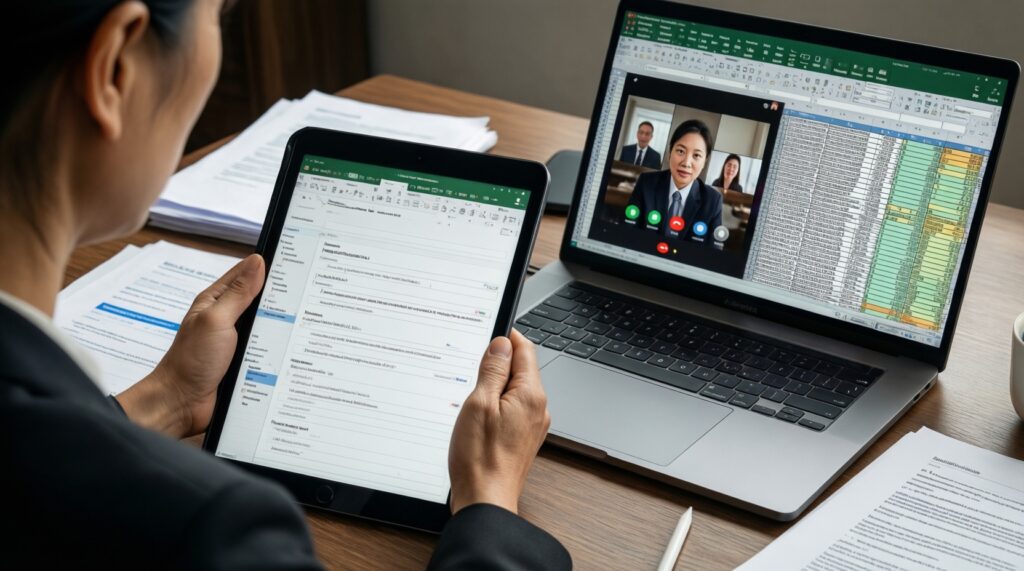
Yes for email, docs, and meetings if your apps have feature parity and you're comfortable with the tablet's file workflow. For heavy multitasking, advanced spreadsheets, and desktop-only tools, a laptop remains more predictable.
What is the minimum setup for typing-heavy work on a tablet?
A solid keyboard and a reliable pointing device (trackpad or mouse) are the practical minimum. If you are shopping for แท็บเล็ตพร้อมคีย์บอร์ดสำหรับทำงาน, also check shortcuts, language switching, and external display behavior.
How do I decide between buying a tablet or buying a notebook in Thailand?
Start with the 3-5 apps you use daily and confirm availability and export formats. This makes ซื้อแท็บเล็ต vs ซื้อโน้ตบุ๊ก a software decision first, then a hardware one.
Is a stylus a must for creatives?
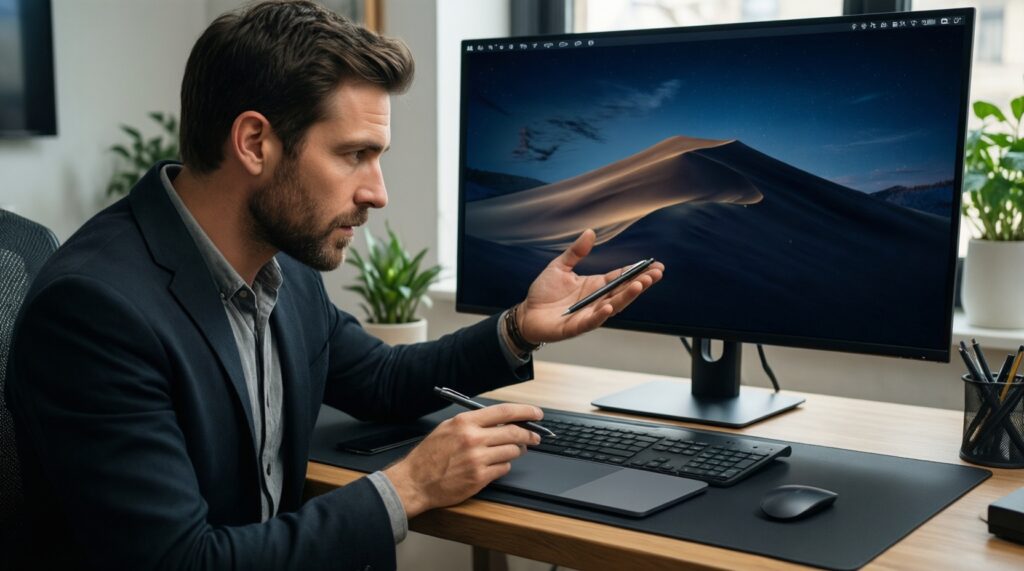
Only if drawing, retouching, or handwritten markups are central to your output. If your creative work is mostly layout, writing, or light edits, prioritize keyboard/trackpad and screen quality first.
What breaks tablet workflows most often?
File transfers (attachments, downloads, external drives), missing desktop features, and awkward multitasking are the usual blockers. These are the real reasons people ask แท็บเล็ตทำงานได้ไหม.
When should I avoid a tablet-only setup?
Avoid it if you need local development, virtualization/containers, complex peripheral stacks, or many windows open all day. In those cases, treat a tablet as a companion device.
How should I test before committing?
Try a one-week pilot: write a long document, run your meeting days, do your file handoffs, and connect your critical peripherals. If any step requires "workarounds," a laptop may be the better primary device.